

The Spring ’26 release for Salesforce Revenue Cloud (now officially branded as Agentforce Revenue Management) brings a packed set of enhancements that Revenue Cloud practitioners have been requesting for a while. In this post, I’ll walk you through 8 key features with live demonstrations of how they work in Salesforce.
If you’re looking for a comprehensive overview of everything in the Spring ’26 release, check out my full Spring ’26 Release Notes breakdown. This post focuses on hands-on walkthroughs of the features I consider most impactful for day-to-day Revenue Cloud work.

What We’ll Cover
- Promotions
- Enhanced Pricing Logs
- Instant Pricing Default On
- Flexible Billing Frequencies
- Product Configurator Enhancements
- Unique Element Names & Descriptions
- IF Statements in Formula Elements
- Enhanced Context Mapping UI
Want to master Revenue Cloud from the ground up?
My Revenue Cloud Implementation Course covers everything from catalog setup to billing—with hands-on labs and real-world scenarios.
1. Promotions in Revenue Cloud
Promotions were in beta as of the previous release, but Spring ’26 makes them generally available for all customers. This is a significant addition to Revenue Cloud’s pricing capabilities.
What Are Promotions?
Promotions in Revenue Cloud can be:
- Manual or Automatic – Either applied by sales reps or automatically triggered based on eligibility rules
- Product or Category-based – Target specific products or entire product categories
- Channel-specific – Define which sales channels promotions apply to
Key Features
- Eligibility Rules – Define who qualifies for specific promotions
- Sales Channel Control – Restrict promotions to specific channels
- Price Waterfall Visibility – See exactly how promotions affect your pricing
- Multiple Assignment Points – Apply promotions in the configurator or on the line editor
Required Permissions
To use Promotions, you’ll need to assign the following to your users:
Permission Set Licenses:
- Revenue Management Promotions Runtime
- Global Promotions Management Basic PSL
Permission Sets:
- Apply Promotions on Sales Transactions
- Promotion Designer
The Promotions Console
Spring ’26 introduces a new Promotions Console app in Salesforce where you can create new promotions with a guided experience, view your promotion calendar, and see active vs. inactive promotions at a glance.
Viewing Promotions on Quotes
When a product is eligible for a promotion, you’ll see it reflected in the price waterfall. Hover over the net unit price to see the promotion discount applied.
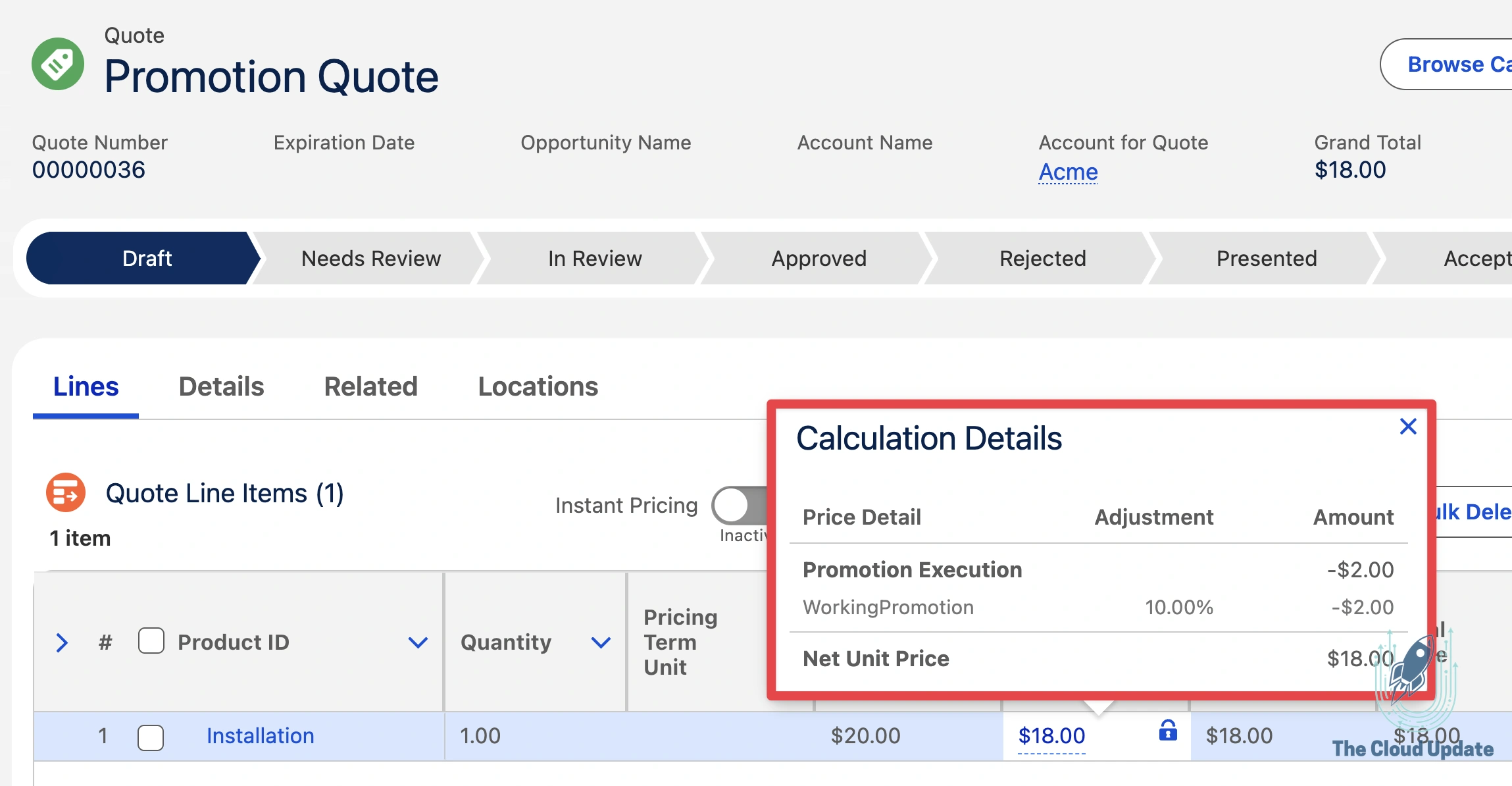
The product side panel now includes a Promotions tab showing which promotion was applied, whether it was automatic or manual, and any previously applied promotions. Promotions are also visible in the configurator for bundle products.
2. Enhanced Pricing Logs
Debugging pricing procedures just got easier. Spring ’26 adds advanced logging capabilities to the Revenue Cloud Operations Console (formerly called the Pricing Operations Console).
New Log Types
You can now enable detailed logging for four specific areas:
- Attribute-Based Price Logs – Track price inputs and execution times for attribute-based pricing
- Derived Pricing Logs – Verify the origin of prices derived from other products or assets
- Price Propagation Logs – Debug price changes across related line items in bundles
- Pricing Promotion Logs – Analyze promotion application or failure during quote calculation
How to Enable
- Go to Setup
- Search for Salesforce Pricing
- Click Advanced Price Log Settings
- Toggle on the log types you need
Performance Note: Advanced logging does impact system performance. Enable only the log types you need for debugging, and consider disabling them in production when not actively troubleshooting.
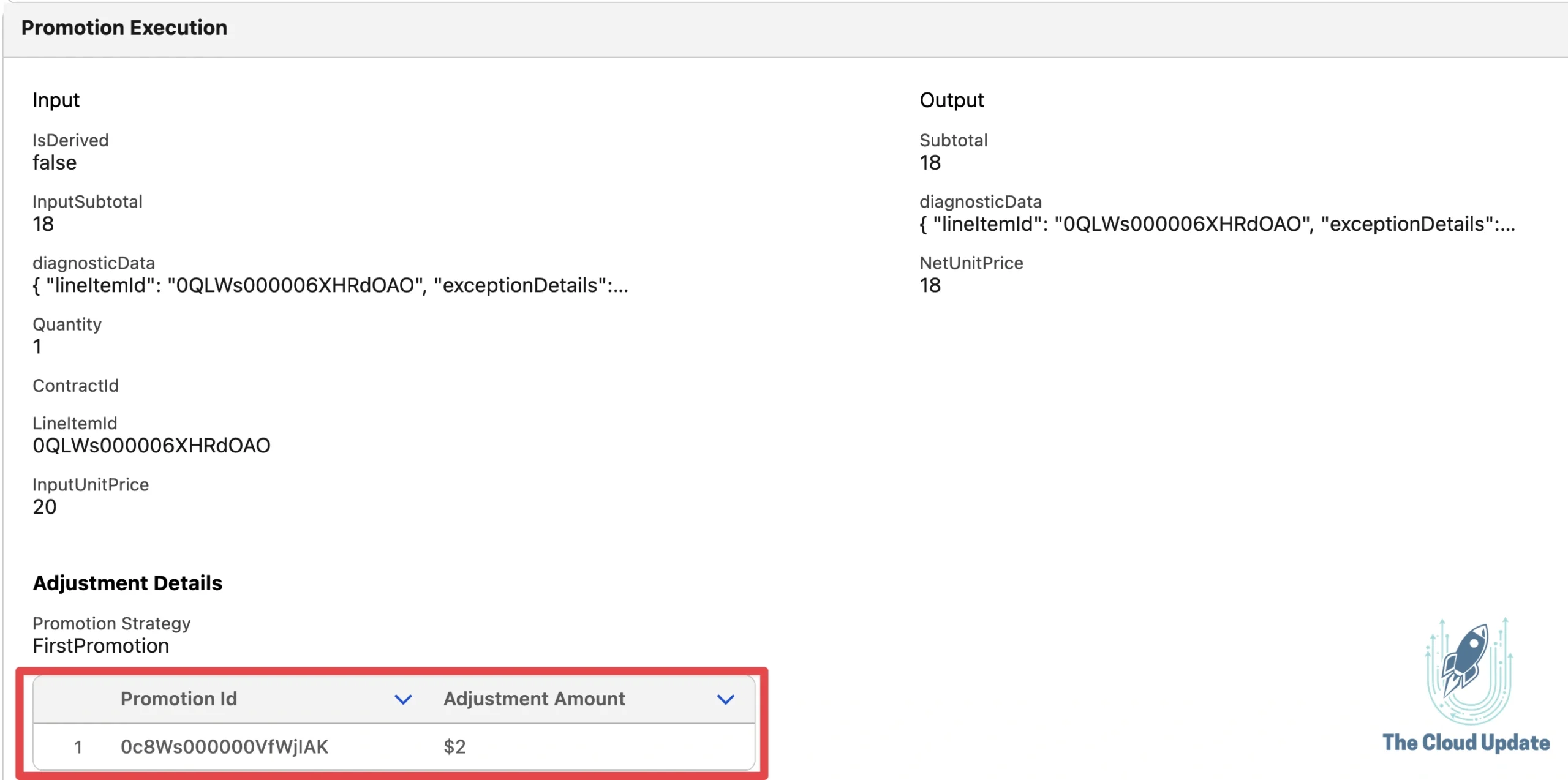
You’ll see details like the Promotion ID that was applied, how the adjustment was calculated, and the adjustment amount. This makes troubleshooting promotion issues significantly easier than before.
3. Instant Pricing Default On
This one is a quality-of-life improvement that many users have been asking for. Previously, when you opened a quote, you had to manually turn on Instant Pricing every time. Spring ’26 lets you set it to default on.
What Changed
| Before Spring ’26 | After Spring ’26 |
|---|---|
| Instant Pricing was opt-in | Can default to on |
| Users had to enable it each session | Automatically enabled |
| Prices updated only on save | Real-time price updates while editing |
How to Enable
- Go to Setup
- Search for Revenue Settings
- Toggle on Instant Pricing Active by Default

With Instant Pricing defaulted on, any modification a user makes to a quote line—quantity changes, attribute updates, etc.—will immediately recalculate pricing without saving. This allows sales reps to explore different scenarios and see pricing impacts in real-time before committing to changes.
4. Flexible Billing Frequencies
This was high on my personal request list. Previously, your billing frequency had to match your product selling model. If a product was set to monthly pricing, billing had to be monthly too.
Spring ’26 decouples these, giving you much more flexibility.
The Change
You can now convert shorter pricing term units into longer billing cycles:
- Monthly pricing → Quarterly, Semi-Annual, or Annual billing
- Quarterly pricing → Semi-Annual or Annual billing
Note: You can only go from shorter to longer. You cannot convert annual pricing to monthly billing.
Why This Matters
Many businesses want to:
- Price products monthly (for flexibility and accurate proration)
- Bill customers annually (for cash flow and reduced invoice volume)
Previously, this required multiple product selling models and workarounds. Now it’s built in.
How to Enable
The key is a new field on the Billing Treatment object: CanChangeBillingFrequency
- Navigate to your product’s related Billing Treatment record
- Set Change Billing Frequency to
true
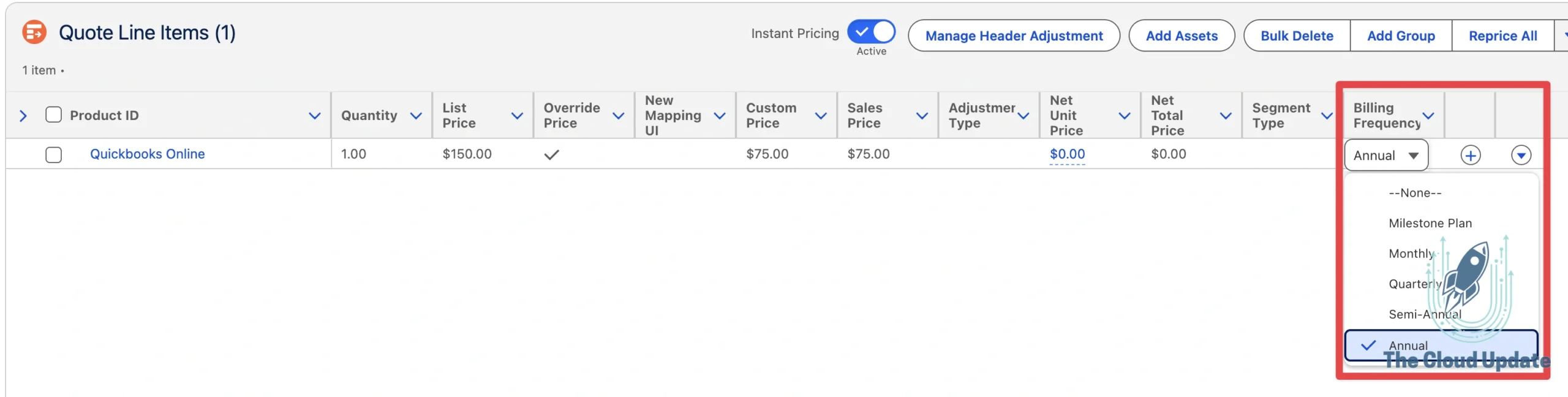
This eliminates the error users previously received when trying to change billing frequency, and it calculates proration correctly.
Learning Revenue Cloud?
The course already covers Product Selling Models, Billing Treatments, and how pricing flows through to billing. 3 hours of content live, more releasing weekly.
5. Product Configurator Enhancements
The Spring ’26 release brings several quality-of-life improvements to the Product Configurator that will speed up bundle configuration.
Clone Product Instances
If you have product options defined as Product Classifications (dynamic products), you can now clone configured instances directly from the option card.
Use Case: You need 10 instances of the same configured software license, each as a separate line item.
Previously, you’d have to add the product, configure it, add another, configure it again, and repeat 8 more times.
Now: Add and configure the product once, click Clone, enter the number of instances (e.g., 10), and all instances are created with your configuration preserved.
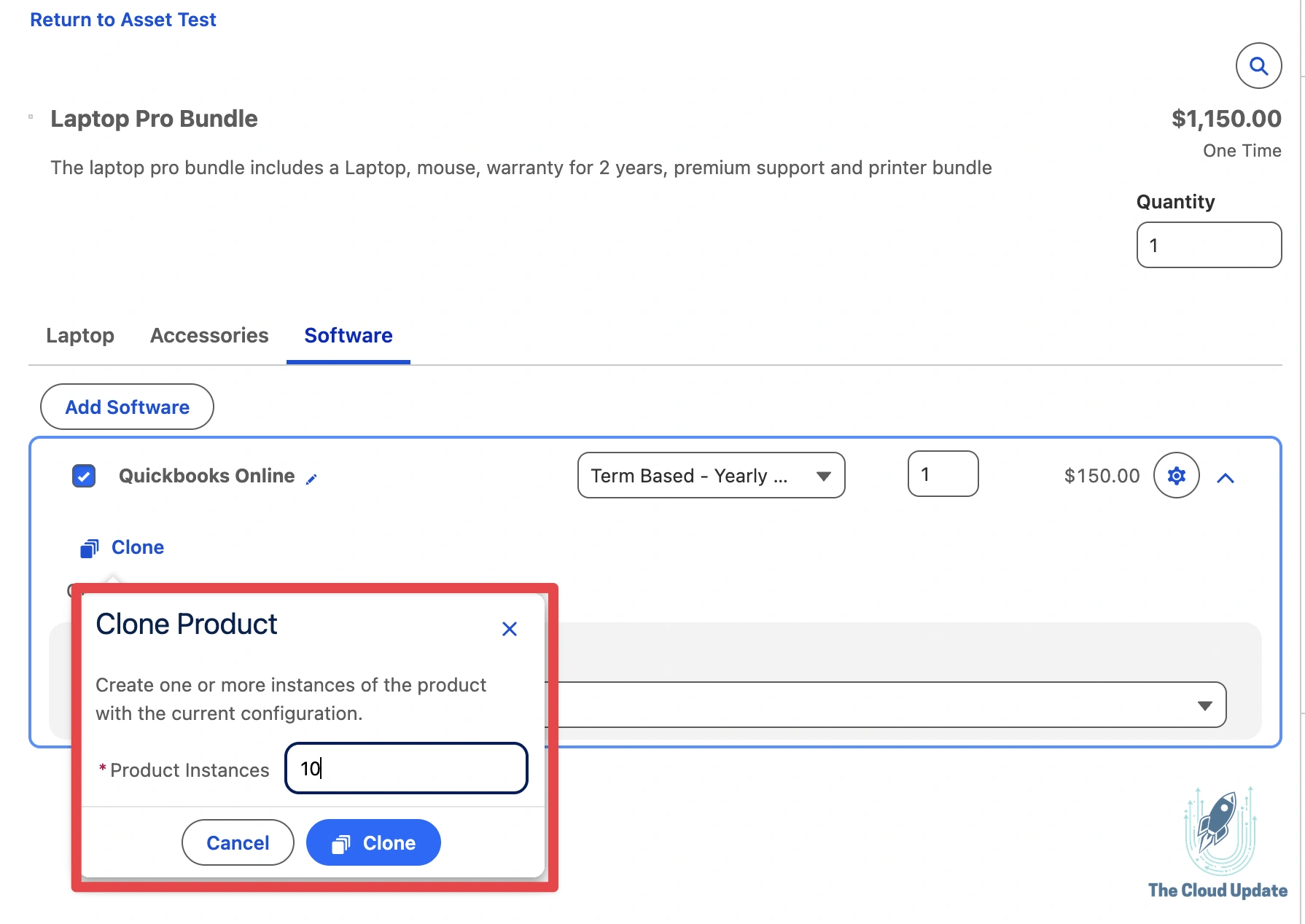
Edit Attributes on Option Cards
You no longer need to drill into child products to modify their attributes. Product attributes for child products now display directly on the parent product’s configuration screen.
Persistent Error Component
When scrolling through large configurations, error messages now remain visible. You won’t lose sight of validation errors as you scroll through options.
6. Unique Element Names & Descriptions
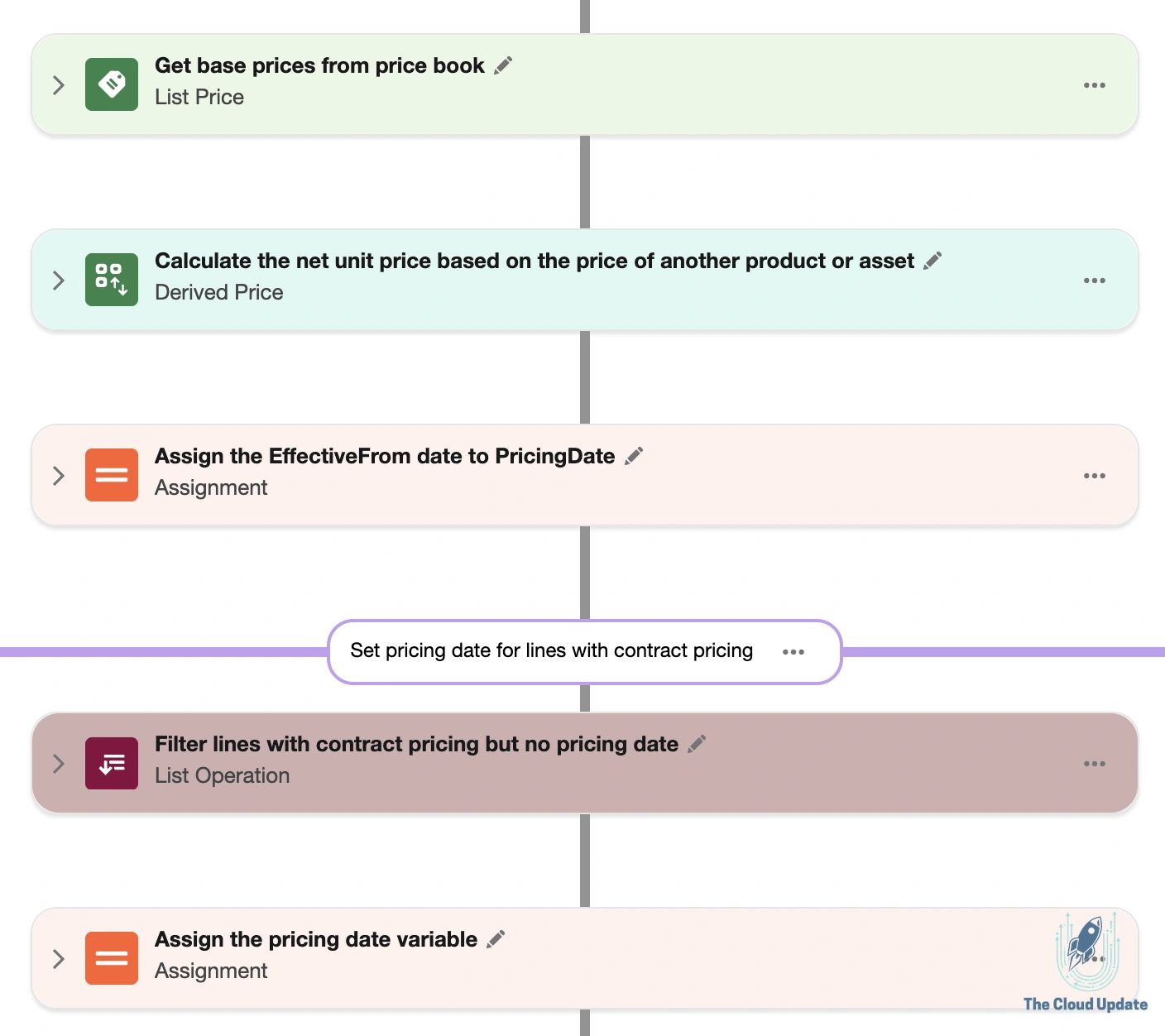
If you’ve worked with the standard Revenue Cloud pricing procedure, you know it can be overwhelming. There are many elements, some are reused, and the naming wasn’t always clear about what each element does.
What’s New
The standard Expression Set Template for pricing procedures now includes:
- Unique element names for every element
- Descriptions explaining what each element does
- Auto-numbering that adjusts when elements are reordered
Examples of New Names
Instead of generic names, you’ll now see descriptive names like “Initial Pricing Setting”, “Map Context Tag”, “Get Base Prices from Price Book”, and “Assign Item Contract Price to List Price”.
Best Practice: Follow this naming convention for any custom elements you add. Your future self (and your team) will thank you.
7. IF Statements in Formula Elements
This is another highly-requested feature. Previously, if you needed conditional logic in your pricing procedure, you had to use List Group elements with conditions. A simple “if this, then that” scenario could consume 4+ elements.
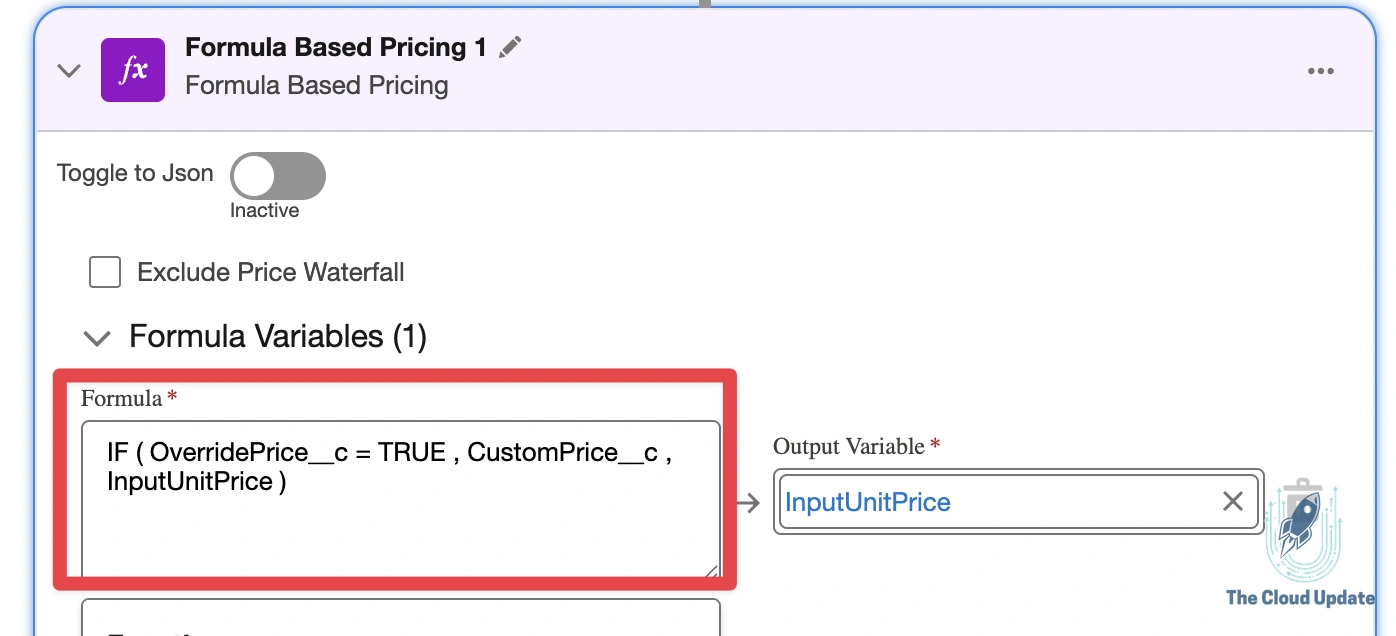
Spring ’26 adds IF statement support directly in Formula-Based Pricing elements.
Syntax
The IF function follows this pattern:
IF(Boolean, TrueValue, FalseValue)The function can return:
- Numbers –
IF(Boolean, Number, Number) - Dates –
IF(Boolean, Date, Date) - Text –
IF(Boolean, Text, Text)
Important: The first parameter must be a Boolean context attribute. You cannot use a comparison expression directly—you need a Boolean field.
The Benefit
What previously required 4 elements (two List Groups with conditions + two Formulas) now requires just 1 Formula element. This makes your pricing procedures easier to read, easier to maintain, and more performant.
Go deeper on Pricing Procedures
The course includes a full module on building and customizing pricing procedures—formula elements, decision tables, matrix lookups, and more.
8. Enhanced Context Mapping UI
If you’ve modified context definitions before, you know the mapping experience can be tedious—especially for large definitions with many attributes. Spring ’26 introduces a completely redesigned mapping interface.
What’s New
- Single Interface – Manage Input and sObject mappings from one screen
- Inline Search – Find attributes and fields faster
- Enhanced Sort & Filter – View all, mapped only, or unmapped only
- Streamlined Workflow – Faster navigation for large definitions
Accessing the New UI
- Go to Setup → Context Definition
- Select the Custom Definitions tab
- Choose your context definition
- Click Map Data
- Select your entity mapping → Edit sObject Mapping → Map

The entire process is significantly faster than the legacy interface, especially when you’re mapping multiple attributes.
Watch the Full Walkthrough
Want to see all of these features demonstrated live in Salesforce? Watch my full video walkthrough:
Go Deeper with Revenue Cloud Training
If you’re ready to master Revenue Cloud beyond release notes, my Revenue Cloud Implementation Course is now available.
What’s Already Live
| Module | Videos | Duration |
|---|---|---|
| Course Introduction | 2 | ~23 min |
| Environment Setup | 5 | ~62 min |
| Product Catalog Management | 3 | ~30 min |
| Products & Bundles | 6 | ~72 min |
Total: 16 videos | ~3 hours of content
New modules releasing weekly covering Pricing Procedures, Transaction Management, Approvals, and more.
Ready to become a Revenue Cloud expert?
Summary
Spring ’26 brings meaningful improvements across the board:
| Feature | Impact |
|---|---|
| Promotions | Full promotion engine now GA |
| Enhanced Pricing Logs | Better debugging for pricing issues |
| Instant Pricing Default | Quality of life for sales reps |
| Flexible Billing | Decouple pricing from billing cycles |
| Configurator Enhancements | Faster bundle configuration |
| Element Names | Clearer pricing procedure debugging |
| IF Statements | Simpler conditional pricing logic |
| Context Mapping UI | Faster context definition management |
These features collectively make Revenue Cloud more powerful and easier to work with. The theme of this release seems to be reducing friction—fewer clicks, clearer information, and more flexibility.
Have questions about any of these features? Drop a comment below or reach out on LinkedIn.
Last updated: December 29, 2025
Comments are closed.